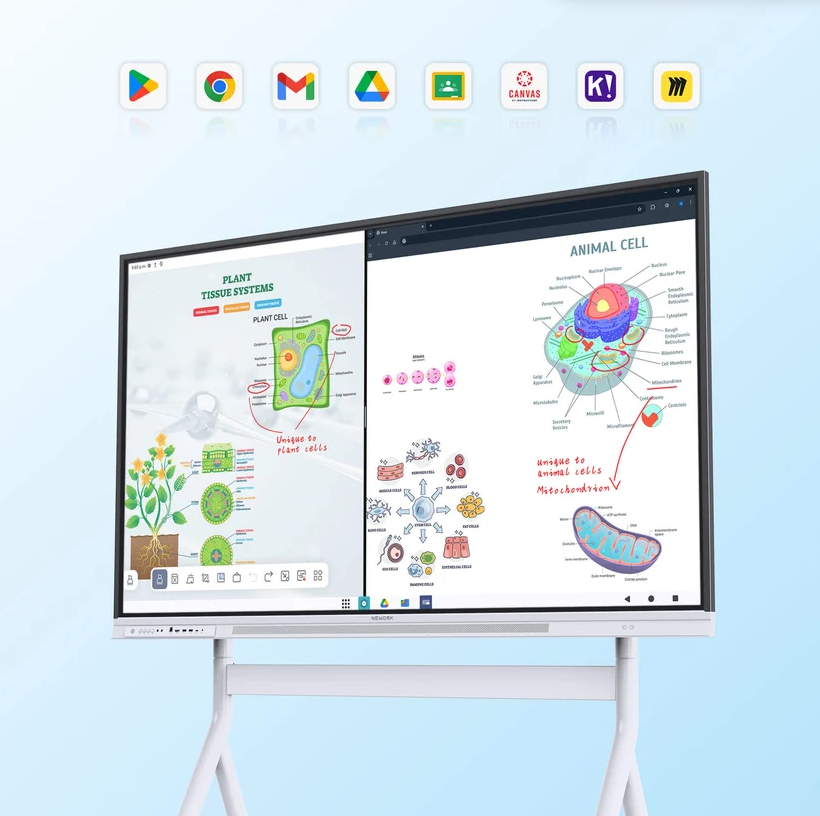
Classroom technology works well only when teachers and students can use it without interrupting the lesson. Schools need to look beyond screen size and appearance. When evaluating NewBoard E series for education, buyers should focus on writing response, classroom interaction, screen sharing, content saving, daily usability, and the technical work required from staff.
Nework develops smart whiteboards for teaching and collaboration, and they state that more than 25,000 professional teams use their smart whiteboards. For K-12 schools comparing classroom display options, they can provide product information and discuss teaching, deployment, and maintenance needs. School procurement teams can contact them to review whether the available functions fit classroom routines before purchasing.
Writing Should Feel Natural During a Lesson
Teachers often move between explaining a concept, writing a formula, marking a diagram, and asking students to respond. A smart board needs to follow these actions without slowing the lesson. Touch response is therefore an important classroom factor, especially in subjects where teachers write frequently.
The supplied product information lists touch response of under 5 ms. Teachers can write or draw with the included stylus or use their fingertips. This gives them flexibility when highlighting points, adding notes, or working through a problem in front of the class.
Handwriting tools can reduce the need to rewrite lesson notes later. The board can convert handwritten notes into digital text and change sketches into regular shapes through AI-powered recognition. These functions can help teachers prepare cleaner lesson records while keeping the lesson itself more spontaneous.
Student Participation Needs More Than a Large Screen
A classroom smart board should not function only as a display. Teachers also need ways to involve students. Multi-user writing allows several users to work on the board, which can fit group exercises, problem solving, vocabulary activities, and short classroom demonstrations.
Annotation is useful when lessons depend on existing materials. Teachers can write directly on images, PDFs, and apps instead of opening a separate whiteboard for every explanation. This can make transitions between prepared content and live discussion more direct.
Sharing tools matter as well. Real-time saving and one-tap QR sharing provide a way to capture lesson notes for later review. This can help teachers move classroom ideas into follow-up study without relying on manual copying.
Device Connection Should Fit Existing Classrooms
Schools rarely replace every classroom device at the same time. Teachers may already use laptops and other digital resources, so a smart board should work with those tools instead of forcing a new process. This is why screen casting and control functions deserve attention during product comparison.
The NewBoard E series for education supports wireless screen casting and two-way touchback control. A teacher can share content from a laptop and interact with that content through the smart board. This can reduce the need to move repeatedly between the computer and the front of the classroom.
Schools should test these functions with their teaching devices before purchasing. It is useful to check connection time, source switching, and whether touchback works in the software teachers use every day. A short classroom test often reveals more than a specification sheet.
Content Management Can Affect Teaching Efficiency
Teachers often work with several types of content during one lesson. A board that allows notes and teaching materials to appear side by side can make this process easier. The supplied product information states that users can view, interact with, and capture content and notes together in one workspace.
This can be useful during reading lessons, science explanations, or document review. Teachers can keep source material visible while adding comments nearby. Students can follow the original content and the teacher’s explanation at the same time instead of switching between separate screens.
Saving is another practical issue. Teachers may want to return to notes in the next lesson or share a summary with students. Real-time saving can preserve classroom work, while QR sharing offers a quick way to distribute captured ideas.
Schools Also Need to Think About Deployment and Support
Procurement decisions do not end when the board arrives. Schools should consider installation, teacher onboarding, daily troubleshooting, and maintenance. A product that is easy to operate can reduce repeated requests to IT staff, especially where one technical team supports many classrooms.
Buyers should also ask how product support is handled, what information is available for setup, and how maintenance questions are addressed. Classroom downtime affects teaching schedules, so clear service procedures can make technical issues easier to manage.
Cost comparison should include more than the purchase price. Schools can review whether built-in functions reduce the need for extra writing tools, separate sharing devices, or additional steps in lesson delivery. The goal is to understand how the equipment fits the full classroom workflow.
A Classroom Board Should Match Daily Teaching
A useful smart board should help teachers explain, write, share, and save content without adding unnecessary steps. Schools can compare products by testing writing response, multi-user interaction, annotation, device connection, touchback control, and note sharing in real classroom situations.
For schools considering Nework, they can also look at how the available whiteboard and collaboration functions fit existing teaching methods, device setups, and IT resources. A product demo or classroom-based evaluation can give procurement teams a clearer basis for comparing long-term usability, support needs, and overall value.
