A professional 3D scanner can connect the real world with the digital manufacturing pipeline. This technology, especially high-precision 3D scanner systems like the 3DeVOK MT and MQ, is essential for 3D printing because it lets you make exact copies, custom parts, reverse-engineered parts, and accurate digital models from real objects.
This guide shows you the most important steps in the scan-to-print process and how professional digitization makes sure that your final 3D printed object is structurally sound and the right size.
Choosing a Professional 3D Scanner: The First Step to 3D Printing
For a 3D print to work, you need good data. The first and most important step is to pick a professional 3D scanner. The 3DeVOK MT and other similar devices are multi-functional tools made for this purpose. They have features that make the preparation process for 3D printing easier:
High Precision and Detail: The MT and MQ models can be accurate to within 0.04 mm. The MQ model has a resolution of 0.1 mm, and the MT model has a resolution of 0.05 mm. This level of detail makes sure that even the most complicated mechanical parts, detailed textures, or subtle curves of an object are accurately captured, which keeps the final printed part from having any flaws.
Versatile Material Handling: One of the best things about the 3DeVOK high precision 3D scanner is that it can scan surfaces that are black, shiny, or reflective without needing anti-glare sprays. This makes getting ready for 3D printing easier and speeds up the whole process.
Color and Texture Capture: If you need your prints to accurately reproduce color and texture (like artistic designs, digital humans, or cultural replicas), systems like the 3DeVOK MQ capture vivid 24-bit color, making sure your print-ready file has realistic texture mapping.
The Scan Phase: Getting Data for Manufacturing
When you scan something for 3D printing, you’re trying to make a complete, watertight digital copy of it.
Strategic Scanning Mode: Use the high-detail mode (like the 34 blue laser lines on the MT) for parts that need to be very accurate in size. The large-area infrared speckle mode is best for scanning bigger things or people (like for making custom medical rehabilitation aids or fashion accessories) because it is faster and has a wider field of view.
To make sure you cover everything, keep the right distance while scanning (the software’s real-time color map feedback will help you with this) and make sure there is enough overlap. A model for 3D printing must be watertight, which means that there are no holes or gaps in the mesh surface. This is different from models for visualization. If there is missing data, the mesh will not be manifold and cannot be sliced for printing.
Check for alignment and accuracy: The 3DeVOK Studio software uses advanced hybrid alignment (combining geometry, texture, and markers) to put all the scan passes together. This is where the high-precision 3D scanner checks the volumetric accuracy for parts that need to be very precise. This makes sure that the final digital model matches the size of the real object.
The Post-Processing Phase: Making the File Ready to Print
Before a 3D printer can use the raw data from a professional 3D scanner (a point cloud), it needs to be converted and improved. 3DeVOK Studio and their software take care of this.
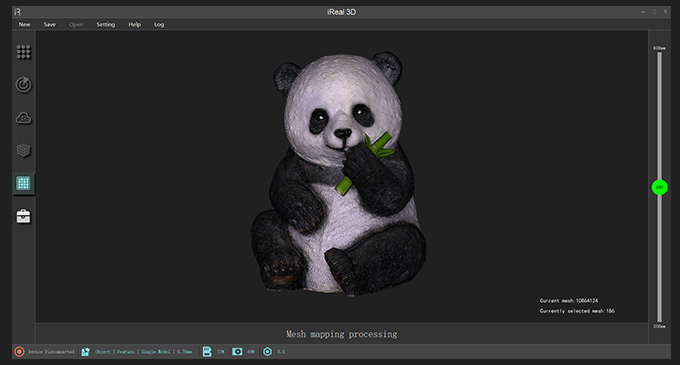
Mesh Generation: The point cloud is turned into a polygon mesh, which is the surface of the 3D model. The software automatically connects the millions of data points and fills in small gaps along the way.
Model Repair and Optimization: Use the mesh editing tools to make important repairs:
Fill in the holes: Close up any gaps by hand or automatically to make sure the model is really watertight.
Mesh Simplification: Files can be very big when they have a lot of detail. By simplifying (reducing the number of polygons), the file size is kept small without losing important details. This makes the model easier for slicer software to work with.
Smoothing and Refinement: Get rid of noise and get the surface finish you want.
Reverse Engineering (Optional): When prints are changed or used as custom fittings, the scan is often brought into a reverse engineering tool like QUICKSURFACE. This special software turns mesh data into CAD geometry that can be changed, such as curves, surfaces, and solids. This lets engineers measure and change the part before making a custom version.
Export to STL/OBJ: The final, improved 3D model is saved in a format that all 3D printers can read, which is usually STL or OBJ. The STL format is the standard for solid geometry. The OBJ format is used when color and texture data are also needed.
Last Steps: Cutting and Printing
The last step is to get the STL or OBJ file ready for the 3D printer’s g-code.
Slicer Import: Use your 3D printer’s slicing software (like Cura, PrusaSlicer, or a proprietary solution) to import the clean file.
Orientation and Supports: Look at the model that the 3DeVOK scanner captured, figure out the best way to print it, and add any support structures that are needed.
Print: The file that is ready to be printed comes from a very accurate 3D scanner and makes sure that the printed object is the same as the original source material, whether it is for quick prototyping, custom production, or parts that will be used. So, the professional 3D scanner is the most important part of a reliable and accurate additive manufacturing process.
